
Bionow’s migration to Glue Up, and how to register for your account

Bionow migrated their website and CRM system to Glue Up in September 2025, which is a significant upgrade and is great news for Bionow members.
The Bionow website makes it much easier for members to post news and jobs and register for events.
You will need to activate your Glue Up account the first time you want to access your membership benefits.
Should you need your activation invitation email resending please get in touch with Dave Holmes or Owain Walsh, or ask the Bionow primary contact in your organisation to send you an invitation.
Once your Glue Up account has been activated, you can access all the Bionow membership services available for your membership type by logging into your account.
The Bionow website
The website is easy to navigate. For example, once you have activated your account and logged in, you just need to go to bionow.co.uk, click ‘Submit News’ on the News page and follow the instructions. Your latest news story will then be approved and added to the Bionow news page and newsletter.
The process for posting your job vacancies via the Jobs page is similar, as is submitting events to the Member Events page (available to Premium Members). You will also be able to access reduced prices as an attendee or exhibitor for any Bionow events listed on the Events page (please see “Guidance for event registration” further down for details).
If you are not logged into your account and try and submit content, the screen will display a message inviting you to create an account (if you have not already done so) and then log in.
You can log in to your account at the top right of the page:

Once logged in, you can also access your Glue Up home page from the shortcut on the top right of the page (circled in red in the image below) which allows you to see the Bionow member directory, Bionow events, your membership details, newsletter subscriptions and more:

If you need any further help registering or with anything else, please get in touch with the Bionow team.
Guidance for event registration
Please ensure you are logged into your Glue Up account before registering to an event.
If you're unable to book a Premium Member or Member ticket, it may be because your personal Glue Up account has not yet been activated or linked to your company's membership record.
Your company's Primary Contact with Bionow can add colleagues and activate their access to your organisation's membership benefits.
Alternatively, please get in touch with Dave Holmes or Owain Walsh mentioning your full name, company name, job title and the name of the event you’re trying to register for.
You will need to create a password and authenticate your email address the first time you want to access your Membership benefits, such as registering to an event with a Member or Premium Member price or submitting content to the Bionow website. After this initial step, you will be able to register to future Bionow events a lot faster.
Non-Members can also create a Glue Up account when they register online for a Bionow event. Although it won’t help them access the membership rates, it will grant them access to the Delegate List which is visible for all registered attendees with a Glue Up account (usually from one week before the start of the event).
Best practice for Members and Non-Members is to log into your Glue Up account before you click on Register so that your registration details (Company name, job title, etc) can auto-fill. This will both save you time and avoid registration issues in case you spell your company name slightly differently than how it appears in our directory.
Please check at the top of the Event Page for an option to LOG IN (or you will see your initials/profile picture there instead if you are already logged in) before you click on REGISTER or BUY TICKET for the Event you are interested in attending.
After selecting your ticket type, you will be asked to fill in your Attendee Information. If you are logged into your account, most fields will be pre-populated, but you can update them if needed.
Please avoid creating a new company name if possible. Instead, type the first part of your company name and click on Find Company on the right-hand side of the field to select one of the drop-down options (careful with acronyms or adding a region at the end of your company name for example) otherwise the system might not recognise your membership status.
If you are registering on behalf of someone else, please make sure to untick the box at the top that says “Use my Glue account Information” or “Copy this information to all attendees below” if you are registering for several people. Otherwise, you will be over-writing the contact information on your own personal Glue Up account.
If you encounter problems registering on behalf of a colleague, it is probably because they are not linked yet to your company's membership record. Please request an invite for them from your Bionow Primary Contact or send an email to info@bionow.co.uk for assistance. Please mention the delegate’s full name, company name, job title and the name of the event you’re trying to register them for.
If you continue to encounter error pop ups when registering for a Member or Premium Member ticket, it may be because your company is not currently a Bionow member or the membership has lapsed so the Non-Member ticket would apply. If you think there is a mistake or need more information about your membership level, please email your Bionow Membership Manager or the contact person indicated on the event page.
FAQ
Why should I complete my Glue Up Profile?
After creating your account, it is helpful to click on “Complete Member Profile” when prompted and fill in your contact information.
You will be able to upload a profile photo which can be helpful when networking with other members. If you attend a Bionow event for example, other attendees will be able to view your name, company and photo in the Community space of the event.
When filling in your Billing information, please write down your Company Name the same way as indicated in your Membership profile. Please ensure you also put your registered office address instead of your personal address under the Billing information.
If you’ve already activated your Glue Up account but don’t see any Bionow related information when you log back into Glue Up, it might be because you have another/several Glue Up accounts with other companies so please make sure Bionow is selected on the top left corner of your screen.
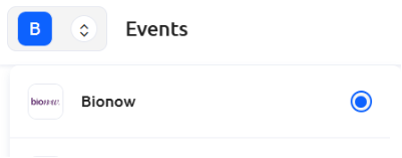
If you wish, you can download the MyGlue app here and access your Bionow Member account from there for a more comfortable user experience on your smartphone. If you are on the mobile app, click on the “Me” tab and select “Memberships” to manage your profile.
How can I receive an invoice for a Bionow event I registered for?
If you need an invoice or to raise a PO before making the purchase, you can click on “Register” or “Buy Ticket” as applicable when you are on the Event Page and select your desired ticket type. After filling in your Registration information, select Payment by Bank Transfer and proceed with your registration. You will then receive an invoice in your registration confirmation email.
After you have purchased your ticket/s online, you will receive a PDF invoice or a link to your invoice in your confirmation email once your payment is processed.
Alternatively, you can also find it again later when you are navigating on the desktop. First ensure you are logged into your Glue Up account by clicking on the top right icon to LOG IN to the event page. If you see your profile picture/initials there, you are already logged in and you can access your registration page by clicking on the link to view your registration at the top of the event page:

From this landing page, you can see an option to view or download the invoice as a PDF. You can also click on the “My Wallet” tab and access all your transaction history there.
If you cannot find the invoice or need it in a different format, please email finance@bionow.co.uk
How can I cancel my ticket?
Please email the contact person indicated on the event page. It is possible to transfer your ticket to another person directly from your Glue Up account but we kindly ask that you email us in advance if you are no longer able to attend.
How can I view the delegate list for a Bionow event I registered for?
When you are navigating on the desktop, first ensure you are logged into your Glue Up account by clicking on the top right icon to LOG IN on the event page. If you see your profile picture there, you are already logged in. Once you are logged in and registered for the event, there are two options to view the attendee list.
Either:
Click on the link to view your registration at the top of the event page:

From this landing page, you can click on this button:

Or:
At the bottom of the event page, usually from seven days before the start of the event, you might see a “View Attendees” button appear under the heading “Community”.
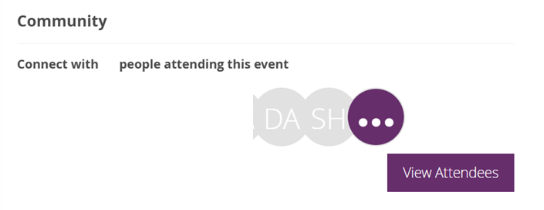
When navigating on the MyGlue app, first select the event from the Home tab or the Events tab and then follow the same steps as described above as for the desktop version.
Please note that in accordance with GDPR principles, attendee lists cannot be exported or downloaded.
How can I send a message to other event delegates?
Once logged into your Glue Up account, you can access the Community section of any event you registered to attend. From there, you can see the names and company names of other attendees who registered for the event. You can also send them a direct message if you see an option to send your digital business card to them and they can also return their business card to you. Once virtual business cards have been exchanged, you will have made a new connection and will be able to message each other on Glue Up. This is the most secure and GDPR-compliant way to reach out to fellow delegates, ensuring that all communication is permission-based online.
If you cannot see an option to send them a business card or to message them directly, it may be because they have not opted in to our Terms and Conditions. You can ask the Bionow Membership team to help make an introduction for you instead.